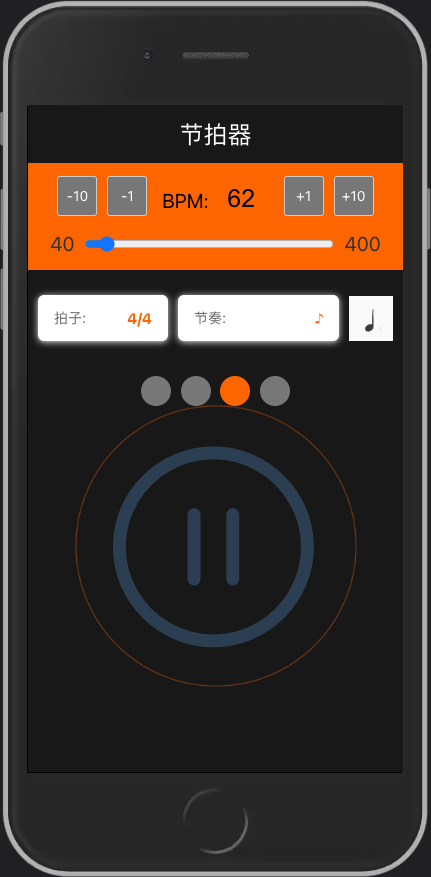
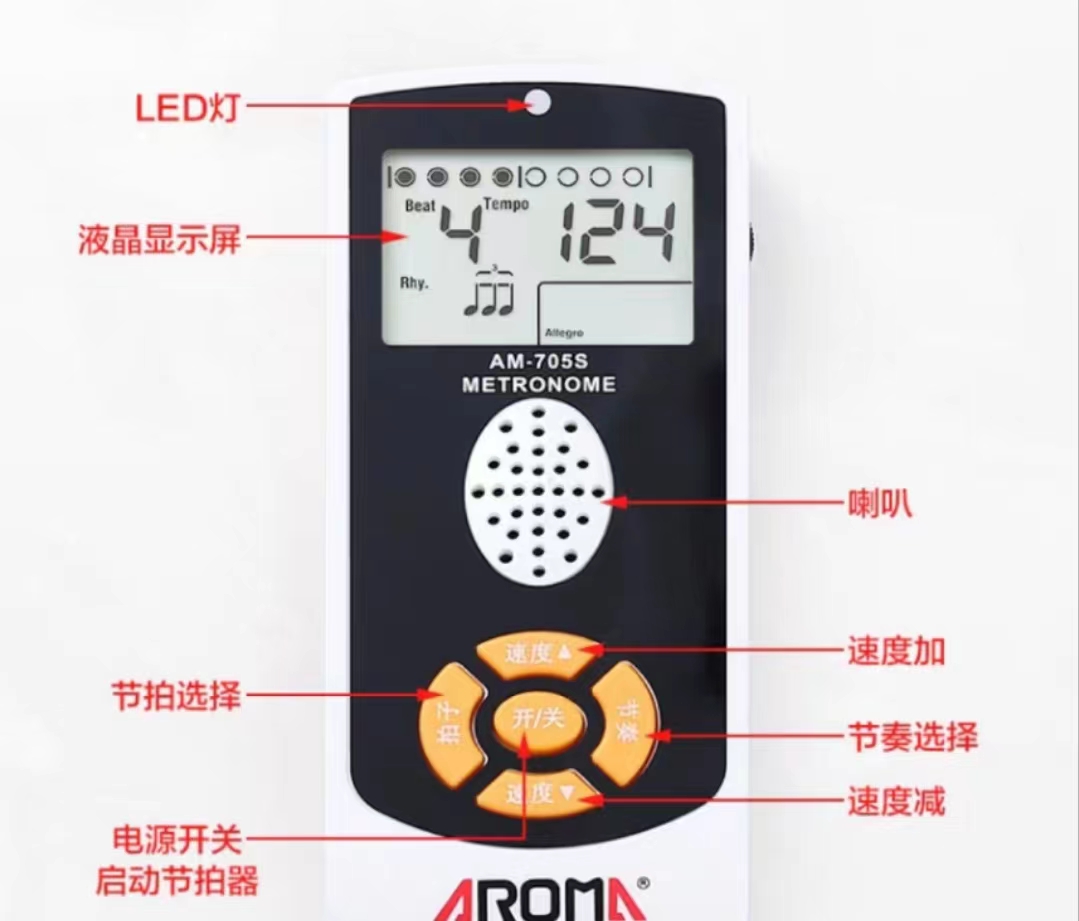
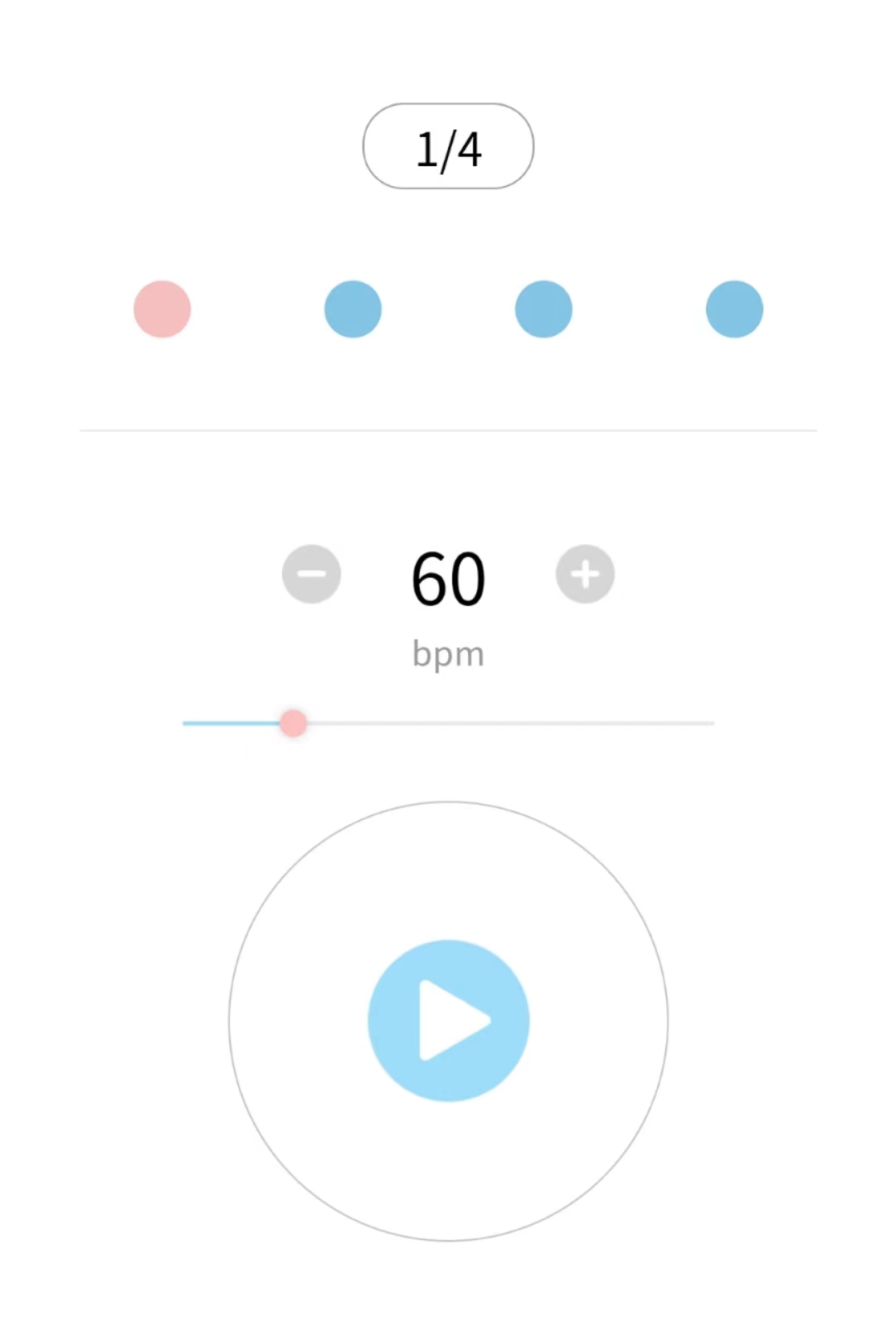
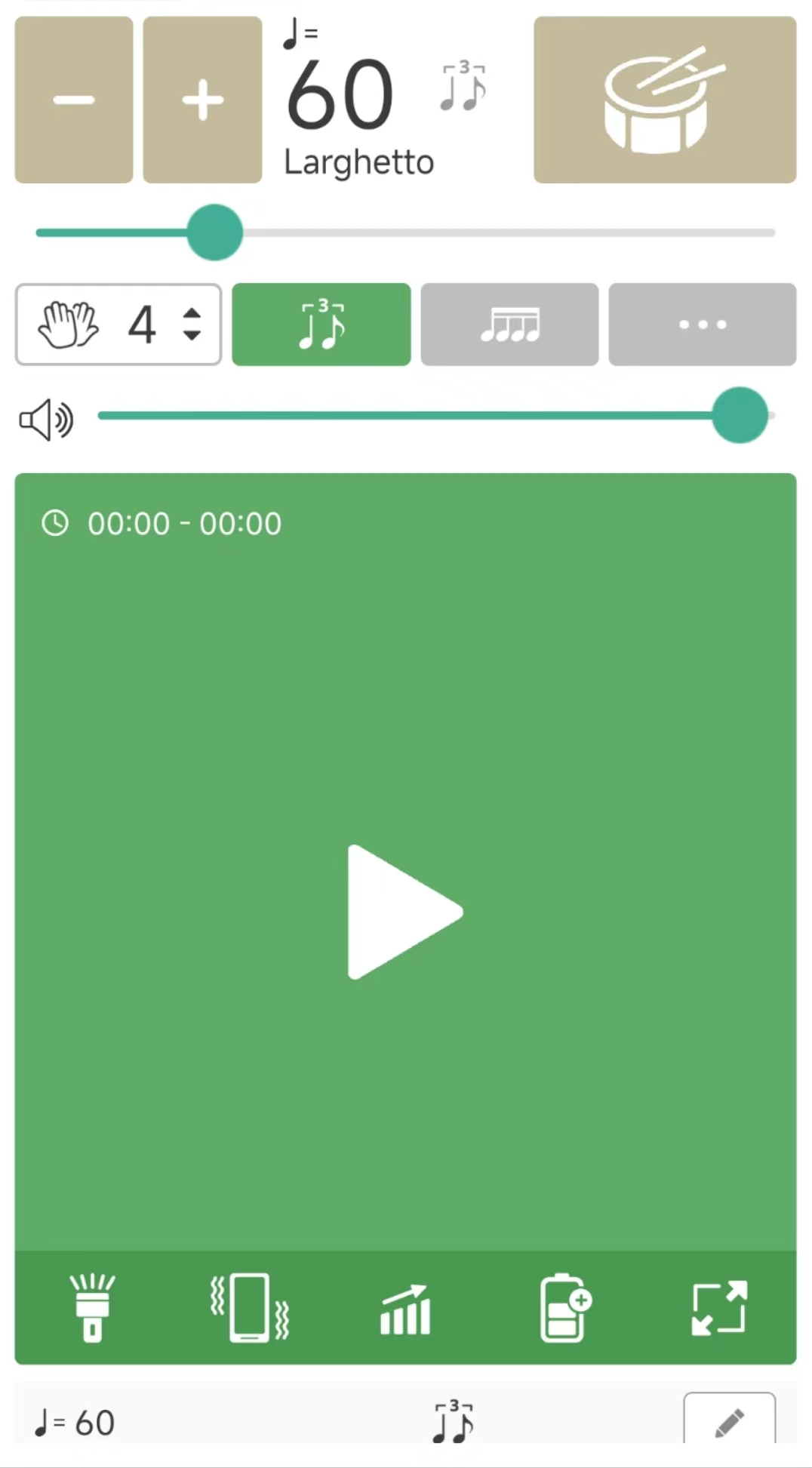
平时练尤克里里经常用到节拍器,突发奇想自己用js开发一个。
最后实现的效果如下:https://ahao430.github.io/metronome/ 。
代码见github仓库:https://github.com/ahao430/metronome 。
1. 需求分析 节拍器主要是可以设定不同的速度和节奏打拍子。看各种节拍器,有简单的,也有复杂的。
设定不同的速度,每分钟多少拍
选择节拍,比如4/4拍、3/4拍、6/8拍等等。
选择节拍的节奏型,一拍一个,一拍两个,一拍三个(三连音),一拍四个,swing,等等。这个很多简易节拍器就没有了。
切换不同的音色,比如敲击声、鼓声、人声等等。
这里拍速是指一分钟有多少拍。
而节拍是以几分音符为1拍,每小节几拍。这个不影响拍速,观察各种节拍器,这里会展示几个小点,每一拍一个点,其中第一拍第一下重声,后面的轻声。
节奏型决定每一拍响几下,以及这几下之前的节奏。比如这一拍响一下、响两下、响三下、响四下;如果是一个swing就是前8后16分音符的时长;也可能这个节奏型的时长是两拍,比如民谣扫弦的下—-,下空下上。
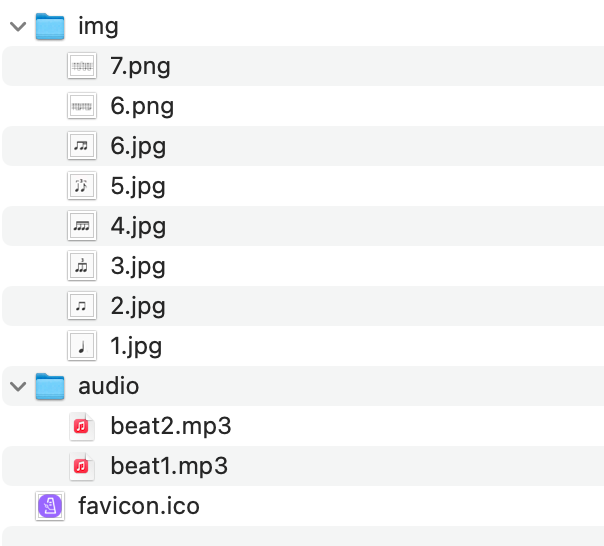
2. 素材准备 这里没有UI,就简单的写下样式,没有做什么图。去找了个节拍器的图标做favicon,找了几个不同节奏型的图片(截图->裁剪o(╥﹏╥)o),最后音频素材扒到一个强一个弱的敲击声。
准备开工。
3. 开发实现 3.1 框架选型 这里选了 vue3,没啥特别的原因,就是平常经常用vue2和react,vue3没怎么用过,练练手。试试vue3+vite的开发体验。直接用官方脚手架开搞。
配置rem,引入amfe-flexible和ostcss-px2rem-exclude。
ui组件引入nutui。
3.2 模块设计 1 2 3 4 5 6 7 8 9 10 11 12 13 14 15 16 17 18 19 <script setup lang="ts"> import Speed from "./components/Speed.vue"; import Rhythm from "./components/Rhythm.vue"; import Beat from "./components/Beat.vue"; import Play from "./components/Play.vue"; </script> <template> <p class="title">节拍器</p> <main> <Speed></Speed> <div class="flex"> <Beat></Beat> <Rhythm></Rhythm> </div> <Play></Play> </main> </template>
将页面按照功能模块划分了几个组件,上面是调节拍速,中间是选择节拍和节奏型,最下面是播放。
由于播放组件要用到其他组件的设置,引入pinia状态管理,数据都存放到store。由于播放组件要获取其他组件的数据,就每个组件都建了一个store,数据和计算逻辑都放到里面了。
这里写组件时遇到vue3的第一个坑,数据解构失去响应性了,后面使用store的数据,直接用store.xxx。
3.3 数据结构设计 拍速、节拍、节奏型组件都很简单,下拉选择就行了。重点需要设计一下数据结构。
节拍我是用一个数组来存储,如[3,4],看数组第一项知道这一小节节拍的数量。
节奏型考虑到有的节奏型不止一拍,用了一个二维数组来表示,每一项是一拍,然后这一拍由1和0的数组来表示,如民谣扫弦的↓ ↓ ↓↑,读作下空空空下空下上,写成[[1,0,0,0],[1,0,1,1]]。
1 2 3 4 5 6 7 8 9 10 11 12 13 14 15 16 17 18 19 20 21 22 23 24 25 export const MIN_SPEED = 40 export const MAX_SPEED = 400 export const DEF_SPEED = 120 export const DEF_BEAT = [4,4] export const BEAT_OPTIONS = [ [1,4], [2,4], [3,4], [4,4], [3,8], [6,8], [7,8], ] export const DEF_RHYTHM = 1 export const RHYTHM_OPTIONS = [ { id: 1, name: '♪', value: [[1]], img: './img/1.jpg', rate: 30}, { id: 2, name: '♪♪', value: [[1,1]], img: './img/2.jpg', rate: 15}, { id: 3, name: '三连音', value: [[1, 1, 1]], img: './img/3.jpg', rate: 10}, { id: 4, name: '♪♪♪♪', value: [[1,1,1,1]], img: './img/4.jpg', rate: 10}, { id: 5, name: 'swing', value: [[1, 0, 1]], img: './img/5.jpg', rate: 10}, { id: 6, name: '民谣扫弦', value: [[1, 0, 0,0], [1,0,1,1]], img: './img/6.png', rate: 10}, { id: 7, name: '民谣扫弦2', value: [[1, 0, 1, 1], [0,1,1,1]], img: './img/7.png', rate: 10}, ]
3.4 播放逻辑 播放组件这里比较复杂。当点击播放按钮时,要开始打节拍。这是先播放一次重声,然后根据拍速、节拍和节奏型计算下一次声音的间隔,后续都按照这个间隔播放轻声,直到小节结束。
1 2 3 4 5 6 7 function play ( beatCount.value = 0 rhythmCount.value = 0 isPlaying.value = true playBeat () }
1 2 3 4 5 6 7 8 9 10 function playBeat ( if (!isPlaying.value ) return false beat = useBeatStore ().beat console .log ('播放节拍:' , beat) beatCount.value = 0 heavy = true playRhythm () }
1 2 3 4 5 6 7 8 9 10 11 12 13 14 15 16 17 18 19 function playRhythm ( if (!isPlaying.value ) return false rhythm = useRhythmStore ().rhythm .value rhythmRate = useRhythmStore ().rhythm .rate console .log ('播放节奏型:' , rhythm) rhythmNotesLen = 0 rhythmCount.value = 0 rhythm.forEach (item => rhythmNotesLen += item.length }) playNote () }
播放期间,可能在不暂停播放的情况下,修改拍速、节拍和节奏型的值。因此在播放音符时,动态计算拍速,再根据节奏型的音符数量,去计算到下个音符的timeout时间。下个音符如果是1就播放,如果是0就不播放,然后继续定时器。注意一个节奏型或者一个小节完成去重置计数。这里就不看单拍完成情况了。
1 2 3 4 5 6 7 8 9 10 11 12 13 14 15 16 17 18 19 20 21 22 23 24 25 26 27 28 29 30 31 32 33 34 35 36 37 38 39 40 41 42 43 44 45 46 47 48 49 50 51 52 53 54 55 56 57 58 59 60 61 62 63 64 65 66 67 68 69 70 function playNote ( speed = useSpeedStore ().speed player.playbackRate = Math .max (1 , Math .min (10 , speed / rhythmRate)) player2.playbackRate = player.playbackRate const rhythmItemIndex = beatCount.value % rhythm.length const rhythmItem = rhythm[rhythmItemIndex] const note = rhythmItem[rhythmCount.value ] console .log ('播放音频:' , note ? (heavy ? '重' : '轻' ) : '空' ) if (note) { if (heavy) { player.currentTime = 0 ; player.play () heavy = false } else { player2.currentTime = 0 ; player2.play () } } const oneBeatTime = ONE_MINUTE / speed const rhythmNoteTime = oneBeatTime / rhythmItem.length timer = setTimeout (() => { let newRhythmCount = rhythmCount.value + 1 if (newRhythmCount >= rhythmItem.length ) { if (newRhythmCount >= rhythmNotesLen) { newRhythmCount = 0 rhythmCount.value = newRhythmCount } else { rhythmCount.value = newRhythmCount } let newBeatCount = beatCount.value + 1 if (newBeatCount >= beat[0 ]) { newBeatCount = 0 beatCount.value = newBeatCount playBeat () } else { beatCount.value = newBeatCount playRhythm () } } else { rhythmCount.value = newRhythmCount playNote () } }, rhythmNoteTime) if (note) { const styleTime = rhythmNoteTime * 0.8 rhythmCircleStyle.value = `transform: scale(1.5); transition: all linear ${styleTime / 1000 } s; opacity: 0.5;` timer2 = setTimeout (() => { rhythmCircleStyle.value = 'transform: scale(0); transition: none; opacity: 0;' }, styleTime) } }
3.5 音频控制 音频的播放,用到了Audio对象。
1 2 3 4 5 const player = new Audio ('./audio/beat1.mp3' ) const player2 = new Audio ('./audio/beat2.mp3' )
我们找的音频播放速度和时长是固定的,但是当拍速调快,或者一拍的节奏型有多个音符,前一次播放还没结束,后一次播放就开始了,听起来无法区分。这时我们可以调整播放速度,根据前面的音符间的间隔时间来调整倍率,修改player的playbackRate值。
不过实际发现浏览器的倍数有上限和下限,超出范围会报错。而且计算的也不是特别的准,前面音符数量我们用[1]表示一拍一下,其实不是很准,应该是[1,0,0,0,…],但是几个0也得看节拍。干脆直接在那几个节奏型的选项加了个rate字段,凭感觉调节了。
1 2 3 4 player.playbackRate = Math .max (1 , Math .min (10 , speed / rhythmRate)) player2.playbackRate = player.playbackRate
在每次播放音符重新取值,是可以做到切换后在下一个音符修正的,但是如果前面速度选的过慢,到下一次播放要等很久。改为三个选项切换任意值时,停止播放,再启动。
1 2 3 4 5 6 7 8 9 watch ([ () => beatStore.beat , () => rhythmStore.rhythm , () => speedStore.speed ], () => { console .log ('restart' ) restart () })
3.6 动效 在播放的时候,按照节拍数量做了n个小圆点,第几拍就亮哪一个。
然后做了一个呼吸动效,每个音符播放时,都有一个圆环从播放按钮下方向外扩散开来。
1 2 3 4 5 6 7 8 if (note) { const styleTime = rhythmNoteTime * 0.8 rhythmCircleStyle.value = `transform: scale(1.5); transition: all linear ${styleTime / 1000 } s; opacity: 0.5;` timer2 = setTimeout (() => { rhythmCircleStyle.value = 'transform: scale(0); transition: none; opacity: 0;' }, styleTime) }
3.7 大屏居中展示 amfe-flexible会始终按照屏幕宽度计算rem。实际上我们只做了移动端样式,大屏的时候最好居中固定宽度展示,所以自己写一个rem.js,设置最大宽度,超过最大宽度时,只按照最大宽度计算rem,同时给body添加maxWidth属性。
3.8 新增人声发音 增加一个组件,支持下拉选择声音类型,暂时有人声和敲击声。选择人声时,改为播报1234,,2234…。
1 2 3 4 5 6 7 8 9 10 11 12 13 14 15 16 17 18 19 20 21 22 23 24 25 26 27 28 29 30 31 32 33 34 35 import Speech from 'speak-tts' const speech = new Speech ()speech.init ({ volume : 1 , rate : 1 , pitch : 1 , lang : 'zh-CN' , }) function playVoice ( const voice = useVoiceStore ().voice console .log ('voice: ' , voice) if (voice === 'human' ) { const text = rhythmCount.value === 0 ? (beatCount.value + 1 ) : (rhythmCount.value + 1 ) speech.speak ({ text : '' + text, queue : false }) if (heavy) { heavy = false speech.setPitch (0.5 ) } } else { if (heavy) { player.currentTime = 0 ; player.play () heavy = false speech.setPitch (0.5 ) } else { player2.currentTime = 0 ; player2.play () } } }
4. 部署 用github pages部署项目打包文件。这里找了一个别人提供的配置文件,实现push分支后利用github actions自动部署。
在项目根目录新建.github/workflows目录,然后新建一个任意名称,.yml后缀的文件,填入下面配置推送即可。其中branches指定了main,看实际情况可以改成master。推送后action会自动打包main分支代码,将dist目录放到gh-pages分支根目录,并将settings/pages自动设置为gh-pages分支根目录展示。
1 2 3 4 5 6 7 8 9 10 11 12 13 14 15 16 17 18 19 20 21 22 23 24 25 26 27 28 29 30 31 32 33 34 35 36 37 38 39 40 41 42 43 44 45 46 47 48 49 50 51 52 53 54 55 56 57 58 59 60 61 62 63 64 65 66 name : CI on : push : branches : - main jobs : job : name : Deployment runs-on : macos-latest permissions : pages : write id-token : write environment : name : github-pages url : ${{ steps.deployment .outputs .page_url }} steps : - name : Checkout uses : actions/checkout@v3 # setup node - name : Setup Node .js uses : actions/setup-node@v3 with : node-version : 16.16 .0 # setup pnpm - name : Setup pnpm uses : pnpm/action-setup@v2 id : pnpm-install with : version : 7 run_install : false # cache - name : Get pnpm store directory id : pnpm-cache shell : bash run : | echo "STORE_PATH=$(pnpm store path)" >> $GITHUB_OUTPUT - name : Setup pnpm cache uses : actions/cache@v3 with : path : ${{ steps.pnpm -cache.outputs .STORE_PATH }} key : ${{ runner.os }}-pnpm-store-${{ hashFiles ('**/pnpm-lock.yaml' ) }} restore-keys : | ${{ runner.os }}-pnpm-store- # cache fail and install dependencies - name : Install dependencies if : steps.pnpm -cache.outputs .cache -hit != 'true' run : | pnpm install - name : Build run : pnpm run build - name : upload production artifacts uses : actions/upload-pages-artifact@v1 with : path : dist # deploy - name : Deploy Page To Release id : deployment uses : actions/deploy-pages@v1
5. 后续工作 5.1 目前存在的问题 ios声音 目前最大的问题是IOS没有声音 ,这个目前没啥好办法,因为ios的权限问题,只有手动点击才能播放,所以只播放了一下,就不再播放了,定时器后面的播放没法触发。
目测要解决这个问题,只有换平台了,利用小程序或者app的native api去实现。
4.2 TODO 切换不同音效 这个功能好实现,就是素材不好找。不过有些节拍器支持人声,如果播放1234,,2234, 需要在播放时加些逻辑。人声貌似用api可以实现。
UI美化 小程序版